
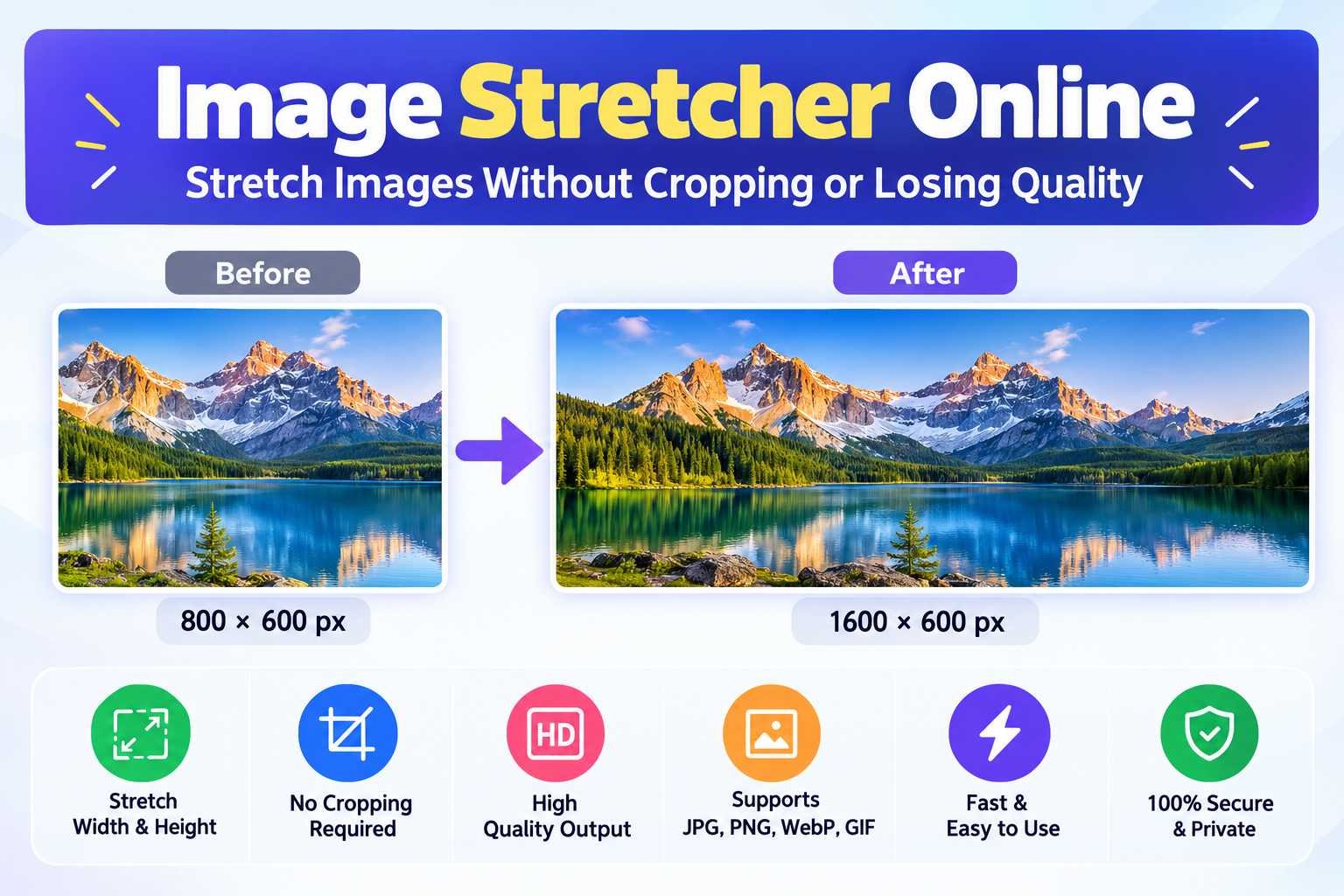
In today’s digital world, images are everywhere. From social media posts and YouTube thumbnails to website banners, online stores, advertisements, and educational presentations, visuals play a major role in communication. However, one common challenge users face is adjusting image dimensions to fit specific requirements without cropping important content.
This is where an Image Stretcher Online tool becomes incredibly useful.
Whether you’re a content creator trying to fit an image into a social media template, a designer working on website graphics, or an e-commerce seller preparing product photos, stretching an image can help you achieve the desired dimensions quickly and efficiently.
Unlike traditional editing software that often requires installation, technical knowledge, and powerful hardware, modern online image stretching tools allow users to edit images directly from their web browser. With just a few clicks, you can increase the width, height, or overall dimensions of an image while maintaining usability and visual appeal.
In this comprehensive guide, you’ll learn what an Image Stretcher Online tool is, how it works, its benefits, essential features, and how it can help solve common image editing challenges across various industries.
What Is an Image Stretcher Online?
An Image Stretcher Online is a browser-based image editing tool that allows users to stretch, extend, or modify the dimensions of an image without cropping any part of the original content.
Unlike cropping, which removes sections of an image, stretching changes the image’s proportions by expanding its width, height, or both.
For example:
- A square image can be stretched into a rectangle.
- A horizontal banner can be expanded further horizontally.
- A portrait image can be adjusted to fit a vertical layout.
- Product photos can be resized to meet marketplace requirements.
Most modern image stretcher tools support common image formats such as:
- JPG
- PNG
- WebP
- GIF
The primary goal is to help users adapt images for different platforms and display requirements without losing important visual information.
Why Do People Use Image Stretching Tools?
There are many situations where image stretching becomes necessary:
- Adapting images for social media dimensions
- Creating custom website banners
- Adjusting product images for e-commerce marketplaces
- Preparing presentation graphics
- Modifying images for print projects
- Fitting photos into design templates
Instead of cropping valuable content, users can stretch images to match the required dimensions.
Image Stretching vs Image Resizing: Understanding the Difference
Many people confuse image stretching with image resizing. While both involve changing image dimensions, they work differently.
Image Stretching
Stretching changes the proportions of an image.
Example:
An image measuring:
- Width: 1000px
- Height: 1000px
May become:
- Width: 1500px
- Height: 1000px
The image becomes wider without changing the height.
Image Resizing
Resizing generally scales both dimensions proportionally.
Example:
An image measuring:
- Width: 1000px
- Height: 1000px
May become:
- Width: 1500px
- Height: 1500px
The original aspect ratio remains unchanged.
When Should You Stretch Instead of Resize?
Stretching is useful when:
- A platform requires specific dimensions.
- Cropping would remove important content.
- A design template requires extra width or height.
- You need to fit an image into a predefined layout.
Resizing is better when:
- You want to maintain image proportions.
- No layout restrictions exist.
- Image quality preservation is the highest priority.
Understanding this difference helps users choose the correct editing method for their specific needs.
How Image Stretching Works
To understand image stretching effectively, it helps to know how digital images are constructed.
Every image is made up of tiny squares known as pixels.
When you stretch an image, software adjusts the placement and spacing of these pixels to fill the newly expanded dimensions.
Horizontal Stretching
Horizontal stretching increases the image width.
Example:
Original Size:
1200 × 800 pixels
After Horizontal Stretching:
1800 × 800 pixels
The image becomes wider while maintaining its original height.
Common uses include:
- Website headers
- YouTube channel art
- Advertisement banners
- Social media cover images
Vertical Stretching
Vertical stretching increases image height.
Example:
Original Size:
1200 × 800 pixels
After Vertical Stretching:
1200 × 1400 pixels
The image becomes taller.
Common applications include:
- Instagram Stories
- Pinterest Pins
- Mobile advertisements
- Portrait-oriented content
Combined Stretching
Both width and height are modified simultaneously.
Example:
Original:
1000 × 1000 pixels
New Size:
1500 × 2000 pixels
This approach is often used when adapting images for entirely different layouts.
Understanding Aspect Ratio
Aspect ratio refers to the relationship between an image’s width and height.
Some common aspect ratios include:
| Aspect Ratio | Common Usage |
|---|---|
| 1:1 | Instagram Posts |
| 16:9 | YouTube Videos |
| 4:3 | Presentations |
| 9:16 | TikTok & Reels |
| 3:2 | Photography |
When stretching images, aspect ratios may change.
For example:
A 1:1 square image stretched horizontally may become a 16:9 image.
This flexibility allows users to adapt visuals to platform-specific requirements.
Pixel Scaling Explained in Simple Terms
Pixel scaling is the process used by image editing software to adjust image dimensions.
Imagine a photo printed on a rubber sheet.
When you gently pull the sheet outward, the image stretches with it.
Digital image stretching works similarly.
The software calculates how pixels should be redistributed across the expanded area.
Modern image stretcher tools use advanced interpolation methods such as:
Nearest Neighbor
Fast but less accurate.
Commonly used for:
- Pixel art
- Low-resolution graphics
Bilinear Interpolation
Creates smoother transitions between pixels.
Suitable for:
- General image editing
- Social media graphics
Bicubic Interpolation
Produces higher-quality results.
Often preferred for:
- Photography
- Professional design work
AI-Assisted Scaling
Some advanced tools use artificial intelligence to predict missing details.
Benefits include:
- Better quality
- Reduced distortion
- Improved sharpness
AI-powered stretching is becoming increasingly popular among designers and content creators.
Benefits of Using an Online Image Stretcher
Online image stretching tools have become popular because they simplify complex editing tasks.
No Software Installation Required
One of the biggest advantages is convenience.
Users can:
- Open a browser
- Upload an image
- Edit instantly
There is no need to install:
- Photoshop
- GIMP
- Desktop editing software
This saves both time and storage space.
Fast Image Editing
Most online image stretchers complete processing within seconds.
This is particularly useful for:
- Bloggers
- Social media managers
- Marketing teams
- E-commerce sellers
Quick editing improves workflow efficiency.
Browser-Based Accessibility
Since these tools operate online, they work across multiple devices.
You can access them from:
- Windows PCs
- Mac computers
- Chromebooks
- Tablets
- Smartphones
This flexibility makes them ideal for remote work environments.
Mobile-Friendly Editing
Many modern users create and edit content directly from mobile devices.
Online image stretchers allow:
- Instant uploads
- Touch-based editing
- Quick downloads
This eliminates the need for complex mobile editing applications.
Cost Savings
Professional image editing software can be expensive.
Many online image stretcher tools offer:
- Free plans
- No subscriptions
- Unlimited basic usage
This makes them attractive to students, freelancers, startups, and small businesses.
Improved Productivity
Instead of learning advanced software, users can perform simple image modifications quickly.
This reduces editing time and allows creators to focus on content production.
Better Platform Compatibility
Different platforms require different image dimensions.
Examples include:
- Instagram posts
- Facebook covers
- YouTube thumbnails
- LinkedIn banners
- Pinterest graphics
Image stretching tools help users adapt visuals without recreating designs from scratch.
Key Features of an Image Stretcher Tool
Not all image stretching tools are created equal.
The best tools include several important features designed to improve usability and output quality.
Upload and Preview Functionality
Users should be able to:
- Upload images instantly
- View changes in real time
- Compare before and after results
Live preview functionality helps prevent editing mistakes.
Width and Height Adjustment Controls
A quality image stretcher should provide:
- Manual pixel adjustment
- Percentage-based stretching
- Preset dimension options
This flexibility allows precise customization.
Multiple Format Support
The best tools support:
- JPG
- PNG
- WebP
- GIF
Broad format compatibility ensures users can edit virtually any image type.
Quality Preservation
Image quality is one of the most important considerations.
Advanced tools use:
- Smart interpolation
- High-quality scaling algorithms
- AI enhancement technologies
These features reduce blurriness and distortion.
Download Options
Users should be able to:
- Download edited images instantly
- Select output formats
- Choose quality settings
Flexible download options improve usability.
Cloud-Based Processing
Many online tools process images on cloud servers.
Benefits include:
- Faster performance
- Reduced device workload
- Better scalability
This is especially useful for large images.
Security and Privacy Protection
Users increasingly care about data privacy.
Trusted image stretcher tools often provide:
- Secure uploads
- Automatic file deletion
- Encrypted processing
- Privacy-focused policies
For businesses handling sensitive graphics, these features are essential.
User-Friendly Interface
A clean interface improves productivity.
The best tools prioritize:
- Simple navigation
- Clear controls
- Fast processing
- Minimal learning curve
This allows beginners and professionals to use the tool effectively.
Why Image Stretching Is More Relevant Than Ever
The demand for image editing tools continues to grow because digital platforms constantly introduce new image dimension requirements.
A single piece of content may need different sizes for:
- Instagram Feed
- Instagram Stories
- Facebook Posts
- LinkedIn Banners
- Pinterest Pins
- YouTube Thumbnails
- Website Headers
Rather than recreating graphics from scratch every time, users can stretch and adapt existing images quickly.
This makes online image stretching tools valuable for creators, businesses, marketers, educators, and everyday users alike.
In the next section, we’ll explore how to stretch an image online step by step, examine real-world use cases, compare image stretching with traditional resizing methods, and cover expert best practices for achieving professional-quality results.
How to Stretch an Image Online Step by Step
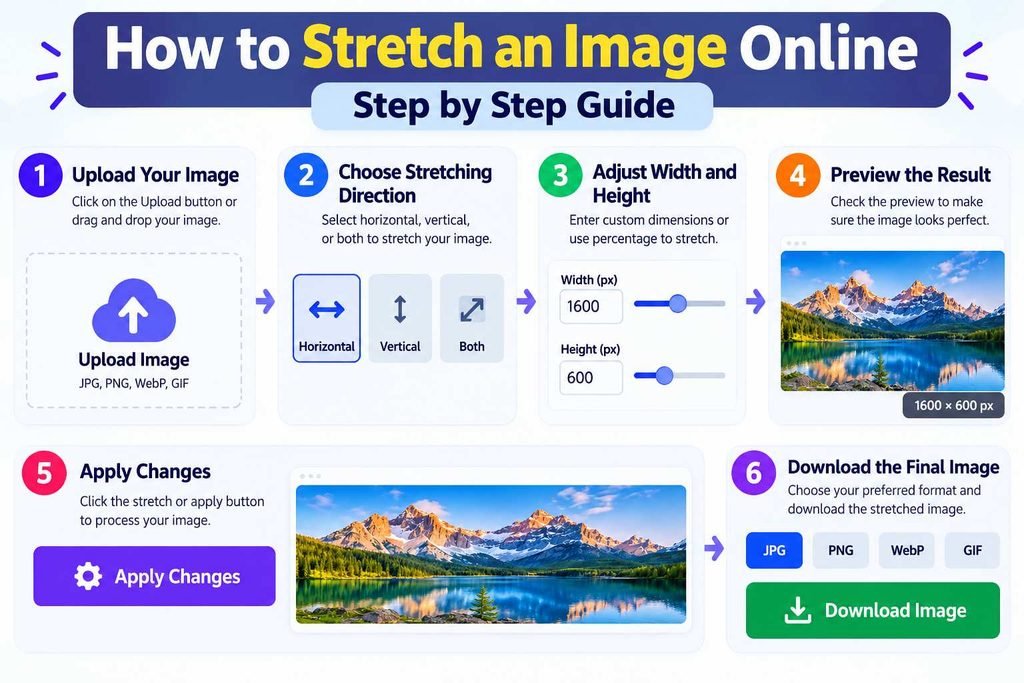
Using an Image Stretcher Online tool is usually straightforward, even for beginners. Most tools follow a similar workflow that requires only a few clicks.
Step 1: Upload Your Image
Start by selecting the image you want to edit.
Most online tools allow uploads from:
- Computer storage
- Mobile devices
- Cloud storage services
- Drag-and-drop functionality
Supported formats typically include JPG, PNG, WebP, and GIF.
Step 2: Choose the Stretching Direction
Decide how you want to modify the image.
Options generally include:
- Horizontal stretching
- Vertical stretching
- Both width and height adjustment
Your choice depends on the platform or project requirements.
Step 3: Adjust Width and Height
Enter custom dimensions or use percentage controls.
Examples:
- Increase width by 20%
- Increase height by 30%
- Convert a square image into a landscape format
Most tools provide real-time previews so you can instantly see the results.
Step 4: Review the Preview
Before downloading, carefully inspect the image.
Check for:
- Distortion
- Blurriness
- Unnatural proportions
- Cropped elements
Making adjustments at this stage can improve the final output significantly.
Step 5: Apply Changes
Once satisfied, apply the modifications.
The tool will process the image and generate the stretched version.
Step 6: Download the Final Image
Choose your preferred format and download the edited file.
Popular export options include:
- JPG
- PNG
- WebP
Some tools also provide quality settings to optimize file size and performance.
Common Use Cases of Image Stretching
Image stretching is used across multiple industries and digital platforms.
Social Media Images
Social media platforms have different size requirements.
Examples:
- Instagram Stories: 1080 × 1920
- Facebook Cover: 820 × 312
- LinkedIn Banner: 1584 × 396
- Pinterest Pin: 1000 × 1500
Instead of recreating visuals, marketers often stretch images to fit platform dimensions.
YouTube Thumbnails
YouTube thumbnails require a 16:9 ratio.
Many creators start with images that don’t match this ratio.
An image stretcher can help adjust dimensions without removing important visual elements.
Website Banners
Website headers and hero sections often require wide-format images.
Image stretching can expand images horizontally to fit:
- Landing pages
- Blog headers
- Promotional banners
- Homepage sliders
E-Commerce Product Photos
Online marketplaces frequently have specific image requirements.
Examples include:
- Amazon listings
- Flipkart product pages
- Etsy stores
- Shopify websites
Sellers often use image stretchers to fit images into required dimensions while keeping the product visible.
Digital Marketing Creatives
Advertising campaigns often require multiple banner sizes.
Examples:
- Google Display Ads
- Facebook Ads
- Programmatic Advertising
- Native Ad Networks
Image stretching helps adapt creatives for different ad placements.
Educational Projects
Students and educators use image stretching tools for:
- Presentations
- Research posters
- Classroom materials
- Infographics
The ability to adjust image dimensions quickly saves valuable preparation time.
Image Stretching vs Image Resizing
Understanding the differences between these two editing methods helps users choose the right approach.
| Feature | Image Stretching | Image Resizing |
|---|---|---|
| Changes Aspect Ratio | Yes | Usually No |
| Alters Proportions | Yes | No |
| Preserves Original Shape | Not Always | Yes |
| Suitable for Custom Layouts | Yes | Limited |
| Risk of Distortion | Higher | Lower |
| Best for Banner Creation | Yes | Sometimes |
| Best for Standard Scaling | No | Yes |
| Platform-Specific Adaptation | Excellent | Good |
Which One Should You Choose?
Use image stretching when:
- You need custom dimensions.
- Cropping is not an option.
- Layout flexibility is required.
Use resizing when:
- You want proportional scaling.
- Maintaining original appearance is important.
- No specific aspect ratio changes are needed.
Best Practices for Image Stretching
Proper image stretching helps maintain quality and achieve professional results.
Avoid Excessive Stretching
Over-stretching can cause:
- Distortion
- Blurriness
- Unnatural proportions
Small adjustments generally produce better outcomes.
Start with High-Resolution Images
Higher-resolution images contain more visual information.
This provides:
- Better scaling quality
- Reduced pixelation
- Sharper output
Maintain Visual Balance
When stretching portraits or products, ensure that objects do not appear unnaturally wide or tall.
Always compare the original and edited versions.
Use Preview Mode
Preview functionality allows users to identify issues before downloading.
Never skip this step.
Optimize for Target Platforms
Different platforms have different image requirements.
Always verify:
- Recommended dimensions
- Aspect ratios
- Maximum file sizes
Consider AI-Powered Tools
Modern AI-based image stretchers often deliver better results than traditional scaling methods.
Benefits include:
- Enhanced sharpness
- Improved detail retention
- Reduced distortion
Common Mistakes to Avoid
Many users unknowingly make mistakes that reduce image quality.
Stretching Too Much
Large dimension increases often create unnatural results.
Try to keep adjustments moderate whenever possible.
Ignoring Aspect Ratio Changes
Altering aspect ratios significantly can distort faces, objects, and text.
Always check the final appearance.
Using Low-Resolution Images
Low-quality source files often become blurry after stretching.
Start with the highest-quality image available.
Forgetting Mobile Optimization
Images may appear differently on mobile devices.
Always test across multiple screen sizes.
Choosing the Wrong File Format
Different formats serve different purposes.
For example:
- PNG for transparency
- JPG for photographs
- WebP for web optimization
Selecting the right format improves performance and quality.
Not Checking File Size
Large image files can slow down websites.
Compress images when necessary after stretching.
Supported File Formats
Most modern Image Stretcher Online tools support a variety of file formats.
JPG (JPEG)
Best for:
- Photographs
- Website images
- Social media graphics
Advantages:
- Smaller file size
- Broad compatibility
PNG
Best for:
- Transparent backgrounds
- Logos
- Graphics
Advantages:
- Lossless quality
- Transparency support
WebP
Best for:
- Modern websites
- Performance optimization
Advantages:
- Excellent compression
- High image quality
GIF
Best for:
- Simple animations
- Lightweight graphics
Advantages:
- Animation support
- Broad browser compatibility
Security and Privacy Considerations
When uploading images online, security should always be a priority.
Choose Trusted Tools
Use reputable services with transparent privacy policies.
Trusted providers typically disclose:
- Data handling procedures
- File retention periods
- Security measures
Look for HTTPS Encryption
A secure connection protects uploaded files during transfer.
Always verify that the website uses HTTPS.
Review File Deletion Policies
The best image editing tools automatically delete uploaded files after processing.
This minimizes privacy risks.
Avoid Uploading Sensitive Images
Never upload confidential or personal information unless you trust the service provider completely.
Examples include:
- Financial documents
- Government IDs
- Private business materials
Understand Storage Policies
Some services temporarily store files for processing.
Review their policies before uploading important images.
Frequently Asked Questions (FAQs)
1. What is an Image Stretcher Online?
An Image Stretcher Online is a browser-based tool that expands image dimensions without cropping the original content.
2. Is image stretching free?
Many online image stretchers offer free functionality, although advanced features may require a premium plan.
3. Can I stretch images without Photoshop?
Yes. Online image stretching tools eliminate the need for professional desktop software.
4. Does stretching reduce image quality?
Minor adjustments typically maintain quality, while excessive stretching may introduce distortion.
5. Can I stretch PNG images?
Yes. Most tools support PNG files.
6. Can I stretch JPG images?
Absolutely. JPG is one of the most commonly supported formats.
7. What is the difference between stretching and cropping?
Cropping removes parts of an image, while stretching changes dimensions without removing content.
8. Can I use image stretchers on mobile devices?
Yes. Most modern tools are mobile-friendly.
9. Are online image stretchers safe?
Reputable services are generally safe, especially those with secure connections and clear privacy policies.
10. Can I stretch images for social media?
Yes. This is one of the most common use cases.
11. Can image stretching help create website banners?
Yes. Horizontal stretching is frequently used for website headers and banners.
12. Which file format is best after stretching?
It depends on the use case. WebP is often best for websites, while PNG works well for graphics and transparency.
13. Can I stretch animated GIFs?
Some tools support GIF stretching while preserving animation.
14. Is AI image stretching better?
AI-assisted tools often produce higher-quality results with less distortion.
15. Can stretched images be used commercially?
Yes, provided you have the rights to use the original image.
16. What dimensions should I use for social media?
Each platform has unique recommendations. Always check current platform guidelines.
17. Can I undo image stretching?
Most tools allow re-editing by uploading the original file again.
18. Does stretching increase file size?
In many cases, yes. Larger dimensions often result in larger file sizes.
Conclusion
An Image Stretcher Online tool provides a quick and effective way to adjust image dimensions without cropping valuable content. Whether you’re creating social media graphics, website banners, YouTube thumbnails, educational materials, or e-commerce product photos, image stretching offers flexibility that traditional resizing methods cannot always provide.
Modern online tools have made the process easier than ever. With browser-based accessibility, mobile compatibility, support for multiple file formats, and increasingly sophisticated AI-powered enhancement features, users can modify images within seconds.
However, achieving professional-quality results requires moderation. Excessive stretching can distort visuals, while careful adjustments preserve appearance and usability. By following best practices, choosing the correct file formats, and using trusted platforms, users can create optimized images that meet the requirements of virtually any digital platform.
As online content continues to expand across websites, apps, social media platforms, and digital marketing channels, image stretching remains a valuable technique for adapting visuals efficiently and effectively.
TheTVApp and IPTV Explained: Why Millions of People Are Leaving Cable TV in 2026